
Choose 2K or 4K
Move from a softer source to a larger output that fits your edit. The tool offers resolutions within its supported enlargement range.
A sharper finish for your footage.
Upscale video to 4K with Topaz, refine compressed detail, and smooth motion with up to 60fps interpolation. Upload your clip, choose the output, and compare the result online.
Upscale a videoMP4, MOV · Up to 32 MB and 5 minutes · Output options depend on source resolution
Already made the clip? Create a video first, then bring the selected take here for finishing.
Move from a softer source to a larger output that fits your edit. The tool offers resolutions within its supported enlargement range.
Choose a Topaz preset, reduce compression artifacts and set a frame rate. Use automatic settings or refine the parameters yourself.
Play the original and enhanced video together, inspect the comparison, and download the completed file from your history.
Choose the output size, recover useful detail, smooth supported motion, and finish the clips you generated in the same workspace.
Explore output dimensions
Dimension example only. The available options in the tool depend on your uploaded file.
Choose Original, 2K or 4K when the source supports that output. A landscape 1280 × 720 clip can become 3840 × 2160 at 4K; portrait clips keep their orientation. Available targets stay within 1–4× the original dimensions, so a very small source may not offer 4K. Use the dimension example to compare output sizes.
Downloaded clips and older exports often carry blockiness, noise and halos around edges. Start with automatic enhancement, then switch to manual controls if the result needs adjustment. Compression, noise, halo reduction and detail recovery can be tuned separately. Review moving sections as well as still frames; an attractive single frame is not the whole video.
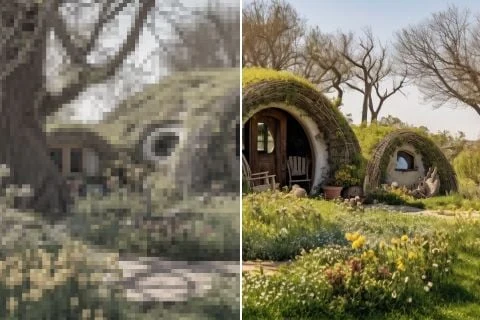
Resolution and motion are separate choices. Keep the original frame rate or enable interpolation and select 24, 30 or 60fps. Interpolation estimates frames between the originals and can make camera movement easier to watch. Review fast action and fine edges for artifacts. Higher frame rates can also increase the quoted processing cost.

Create and compare your shots first, then bring the selected clip into the upscaler for finishing. This keeps high-resolution processing focused on footage you actually want to use. The same workflow works for compatible camera footage and screen recordings. Completed results remain in history for review and download.
Start with Proteus, or compare another preset on a representative clip. Source quality and movement affect the result as much as the preset.
Explore the presets, then choose one for your own file in the workspace.
The default preset in the workspace. Start with Auto enhancement, review the clip, and use manual compression, noise, halo and detail recovery controls if it needs further adjustment.
An alternative Topaz enhancement preset for the same upload. Compare how it handles fine detail and motion against your source before using it for a longer clip.
Another available enhancement option. Try a representative section and inspect faces, edges and compressed areas at the intended output resolution.
An additional Topaz preset to compare on your footage. Keep output resolution and frame rate consistent when judging the difference between presets.
Upload the clip you want to keep and choose a finish that fits its source quality.
01
Open the upscaler and choose a video no larger than 32 MB and no longer than five minutes. The workspace reads its dimensions, duration and frame rate.
Original · 2K · 4K
24 · 30 · 60 fps
02
Choose an available resolution, select a Topaz preset and keep the original frame rate or enable interpolation. Review the output dimensions and credit quote, then start processing.

03
Wait for enhancement and saving to finish. Compare the original and result in the video canvas, then download the completed clip from the workspace.
Prepare clips for social publishing, campaigns, archives, and final delivery without changing tools.
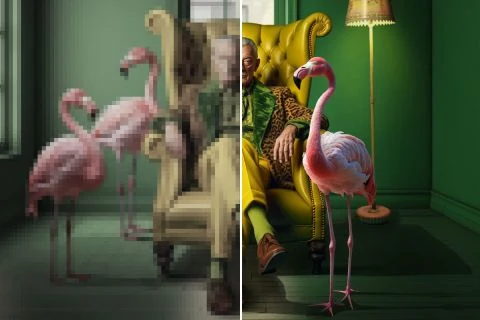
Prepare a selected clip for a feed, presentation or larger screen. Start with a good original export and inspect the uploaded version after publishing, because platforms may compress it again.
Prepare a larger master from a compatible campaign shot or animation. Inspect outlines, textures and motion after enhancement so the result retains the style and important details of the original.

Make visual explanations easier to inspect on larger screens. Enhance compatible clips, then review the result at the intended playback size. Keep text and fine details readable and check moving subjects for artifacts.
Explore prompts at a practical generation setting, then upscale the take you choose. Check subject consistency and movement across the full result before delivering it or placing it in a longer edit.
Check both file size and duration. Output choices are calculated from the source dimensions.
An AI video upscaler increases video resolution using estimated image detail across frames. It can also apply noise reduction and other enhancement settings. Frame interpolation is a separate option that creates intermediate frames to change the motion cadence.
Upload an MP4 or MOV, choose 4K if it is available for your source, select the preset and frame rate, and review the quoted cost. Start processing, then play the comparison and download the completed video. A browser is enough; no desktop editor is required.
Named outputs must stay within 1–4× the source dimensions and cannot downscale the source. A 1280 × 720 clip can reach 3840 × 2160, while a 640 × 360 clip would need 6× enlargement and cannot use this 4K option. The workspace shows only valid targets.
The video must be MP4 or MOV, no larger than 32 MB and no longer than five minutes. Both limits apply. For a larger file, prepare a shorter clip or a suitable export before uploading, while retaining as much original detail as possible.
Yes. Enable frame interpolation and choose 60fps, or choose 24 or 30fps. You can also keep the source frame rate within the supported limit. Interpolation estimates new frames, so inspect fast motion and object boundaries before using the result.
It may improve the appearance, but results depend on how much detail remains. Low-resolution and compressed footage is a more useful starting point than heavy motion blur or extreme digital zoom. Upscaling cannot guarantee an accurate reconstruction of missing detail.
Video processing uses credits. The quote depends on duration, output resolution and frame rate and appears before submission. Check your balance and current plans to choose the output that fits your budget.
Yes. The workspace accepts images as well as videos, and the controls adapt to the uploaded media. The AI Image Upscaler page covers photo enlargement, sharpening and optional face enhancement.
Choose a source, set the resolution and frame rate, and inspect the finished video.
Upscale your first video