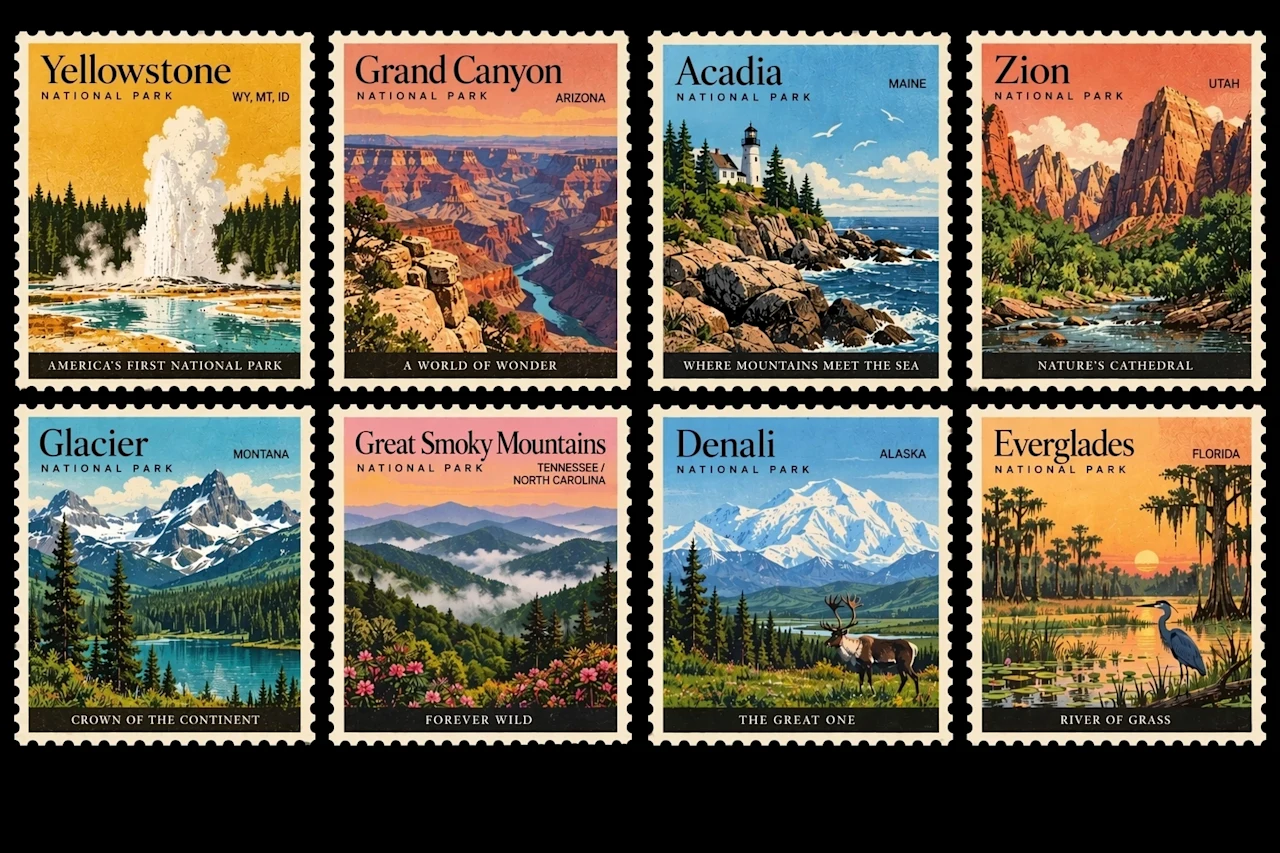
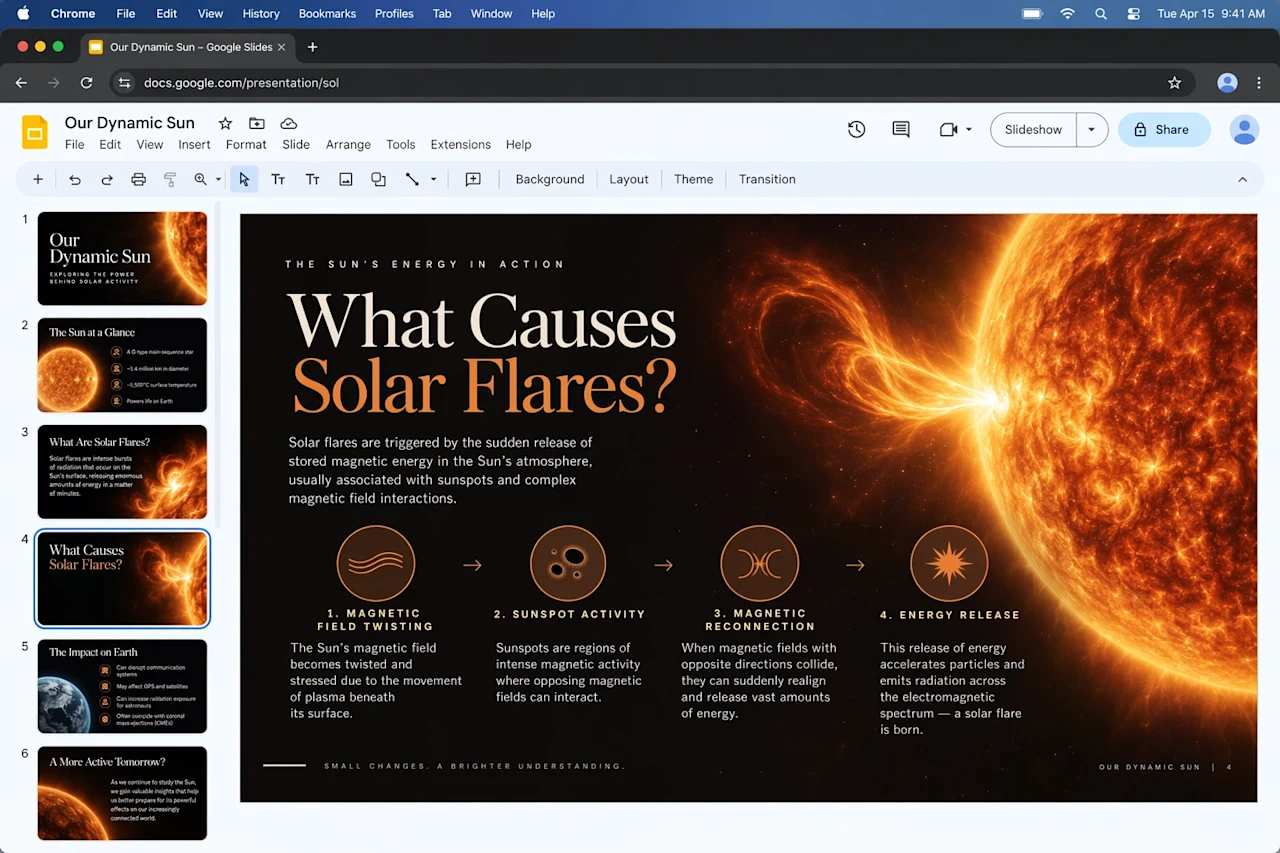
Explore expansive scenes, detailed materials, and imaginative compositions with GPT Image 2.5.
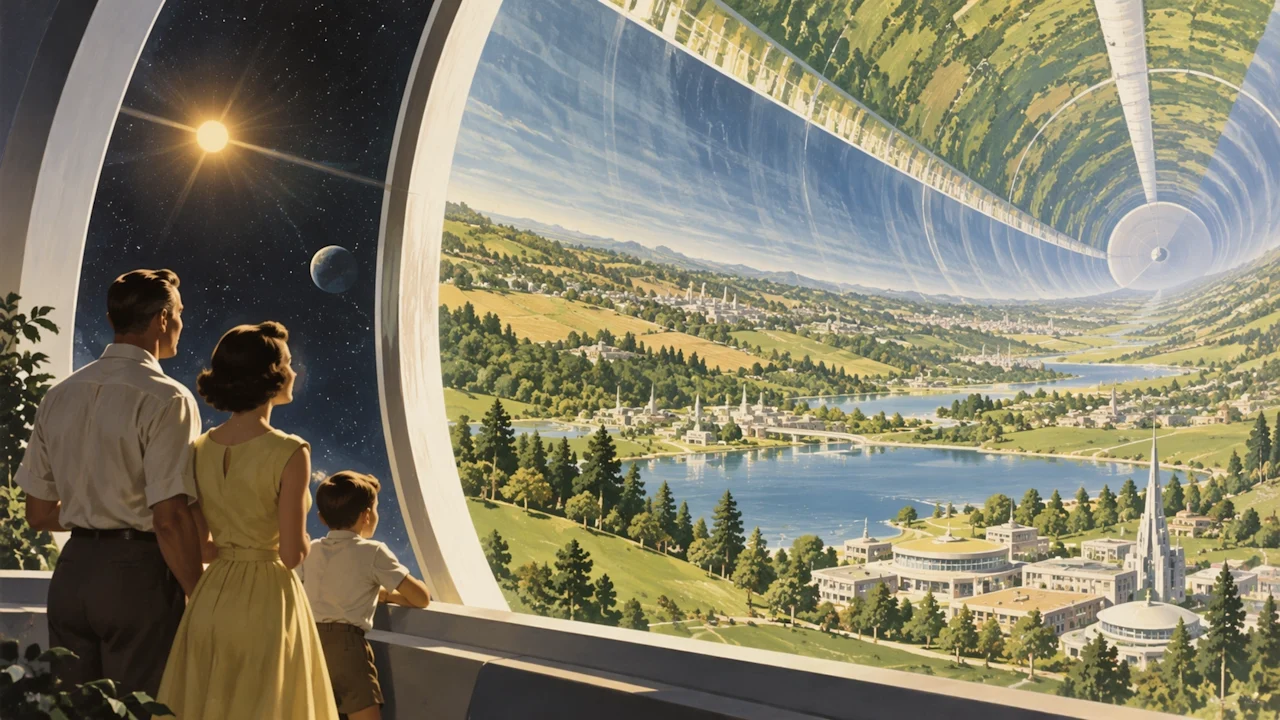
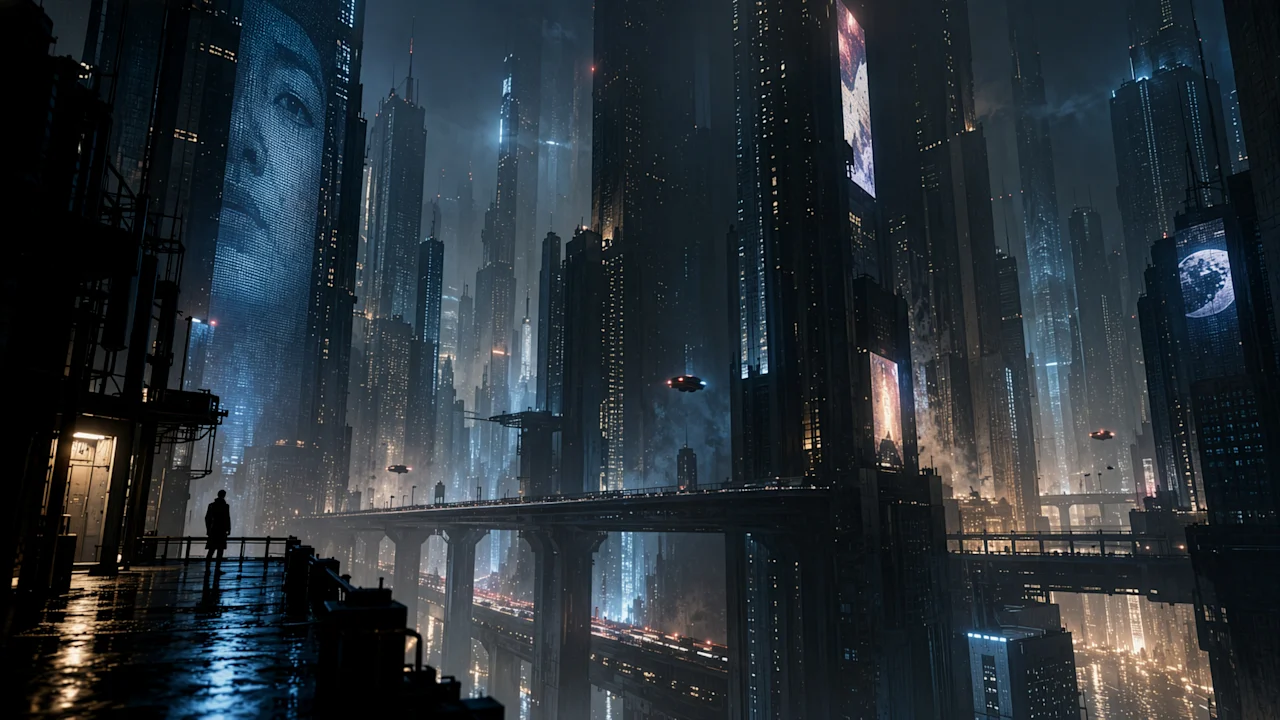
Worlds with depth
Build expansive scenes with a clear sense of perspective, light, and scale.
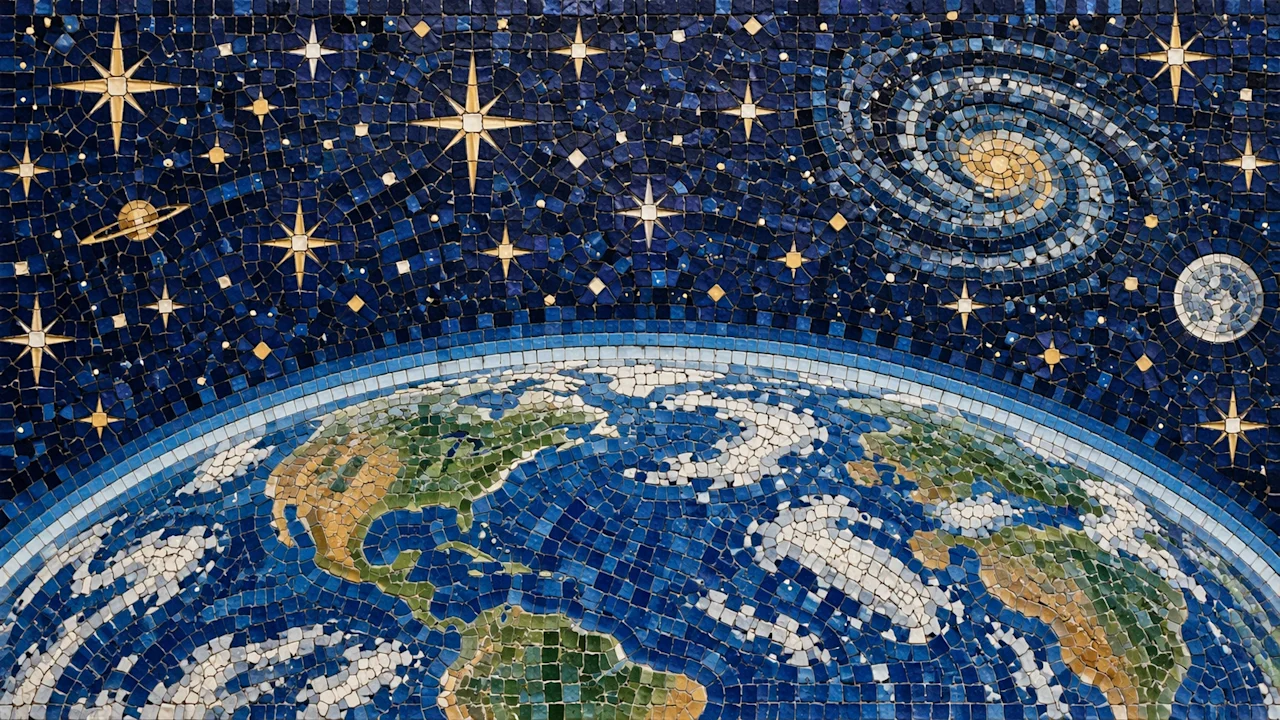
Texture in every detail
Explore intricate materials, rich color, and a consistent visual style across the whole composition.
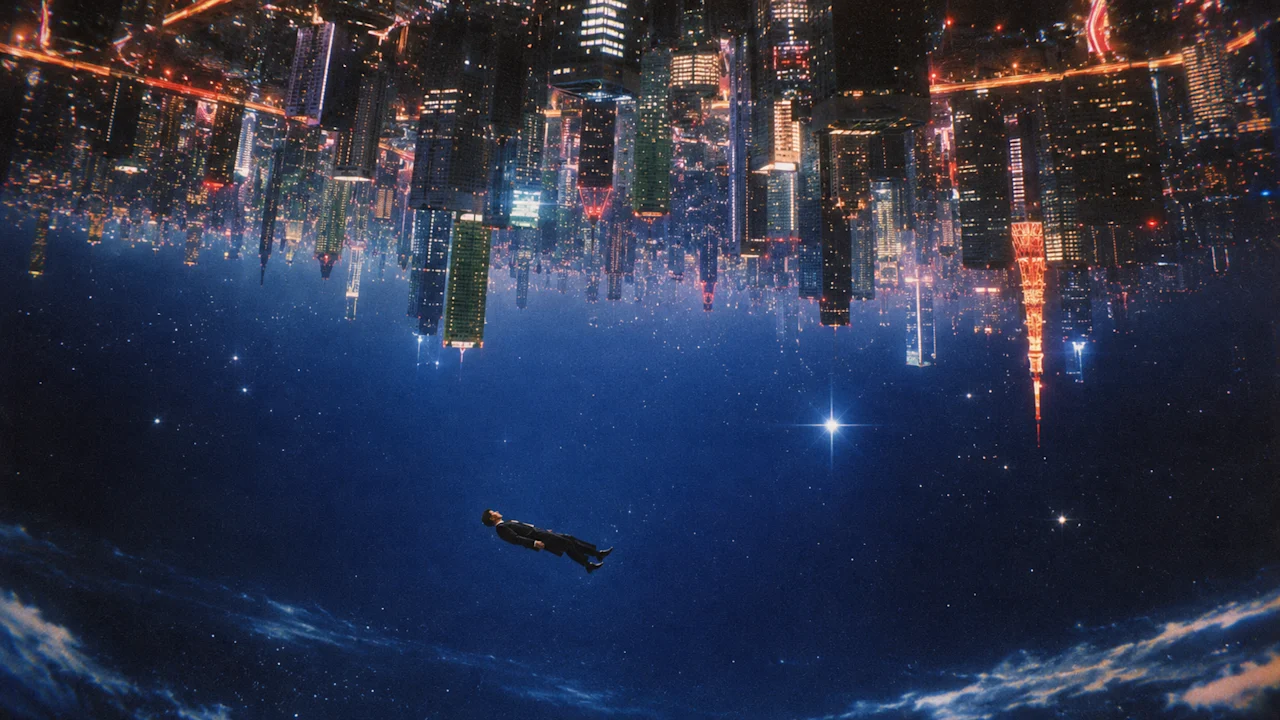
Make an unexpected idea visible
Bring unusual viewpoints and imaginative compositions together in a coherent image.
Cinematic light and atmosphere
Shape a scene with layered architecture, reflections, dramatic lighting, and a clear focal point.
Key features of GPT Image 2.5
See how GPT Image 2.5 transforms reference images across five editing examples. Move each slider to compare the input with the result.
InputResult
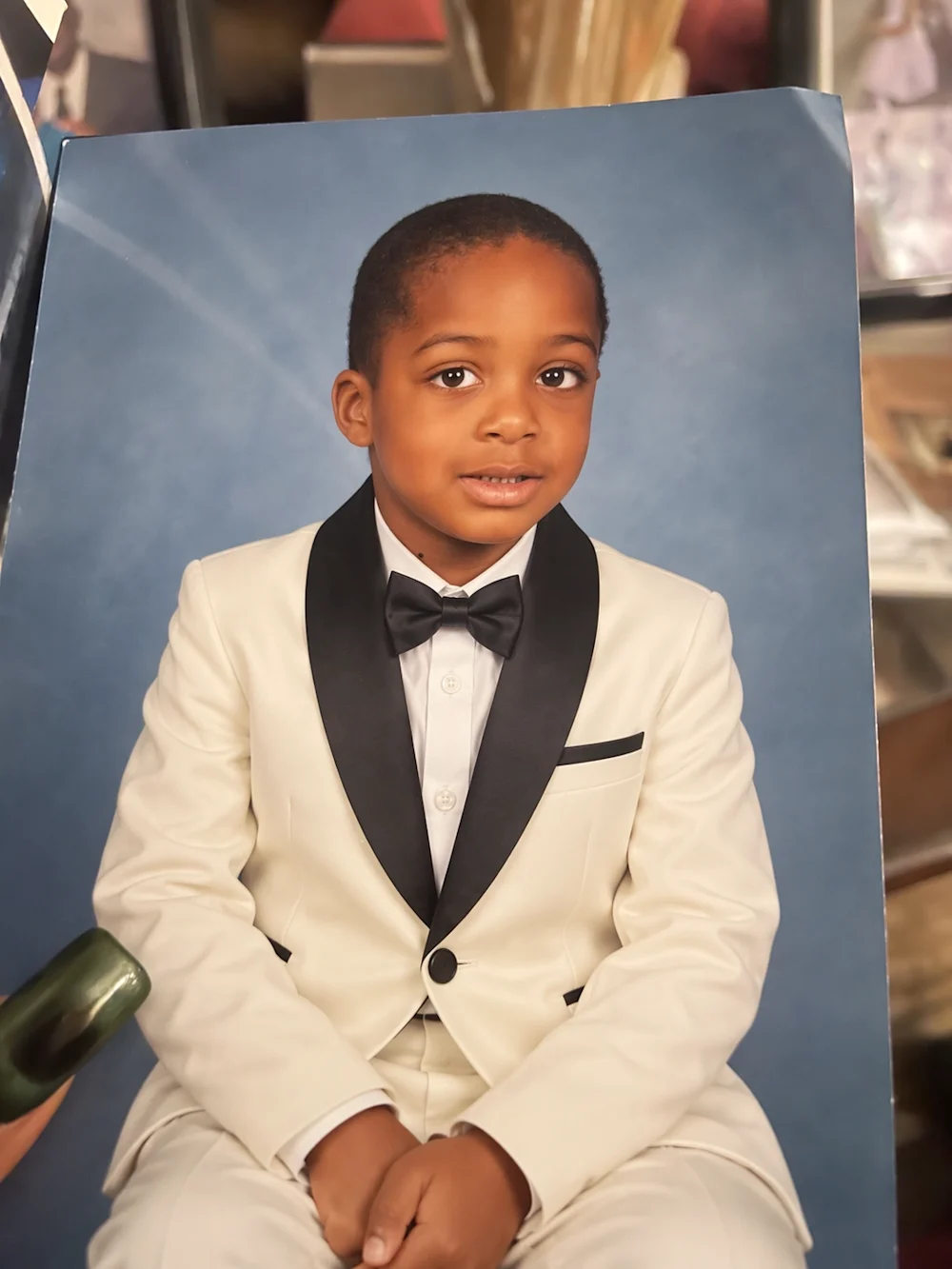
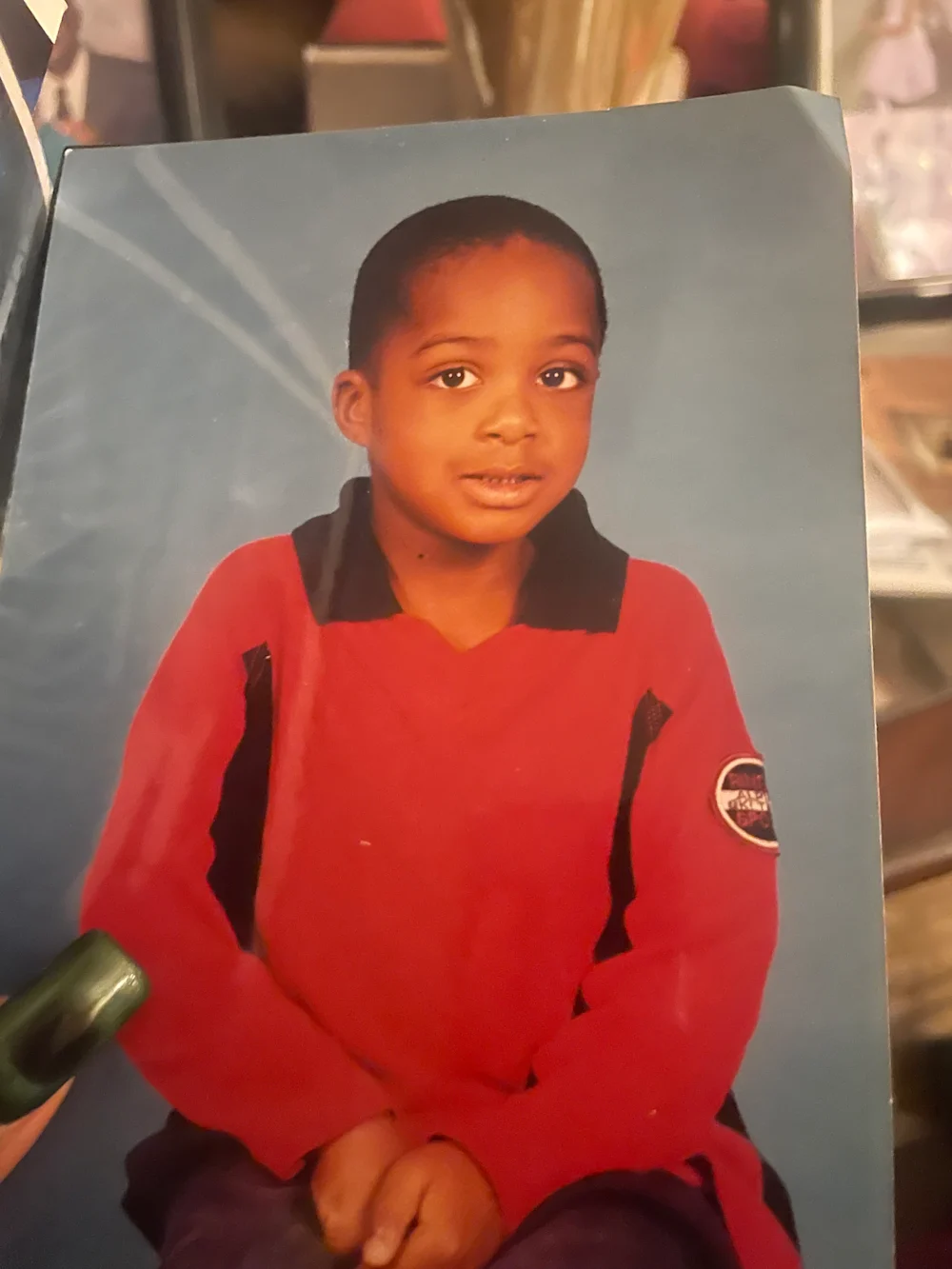
A new outfit, the same familiar face
Turn a familiar portrait into a new look while keeping the person recognizable. This example changes a child’s red shirt into an ivory tuxedo and bow tie, preserving the pose, expression, and blue backdrop. A focused instruction gives the model a clear change to make and a clear set of details to keep.
Change clothing and styling without rewriting the whole portrait.
Name the face, pose, and backdrop you want to preserve.
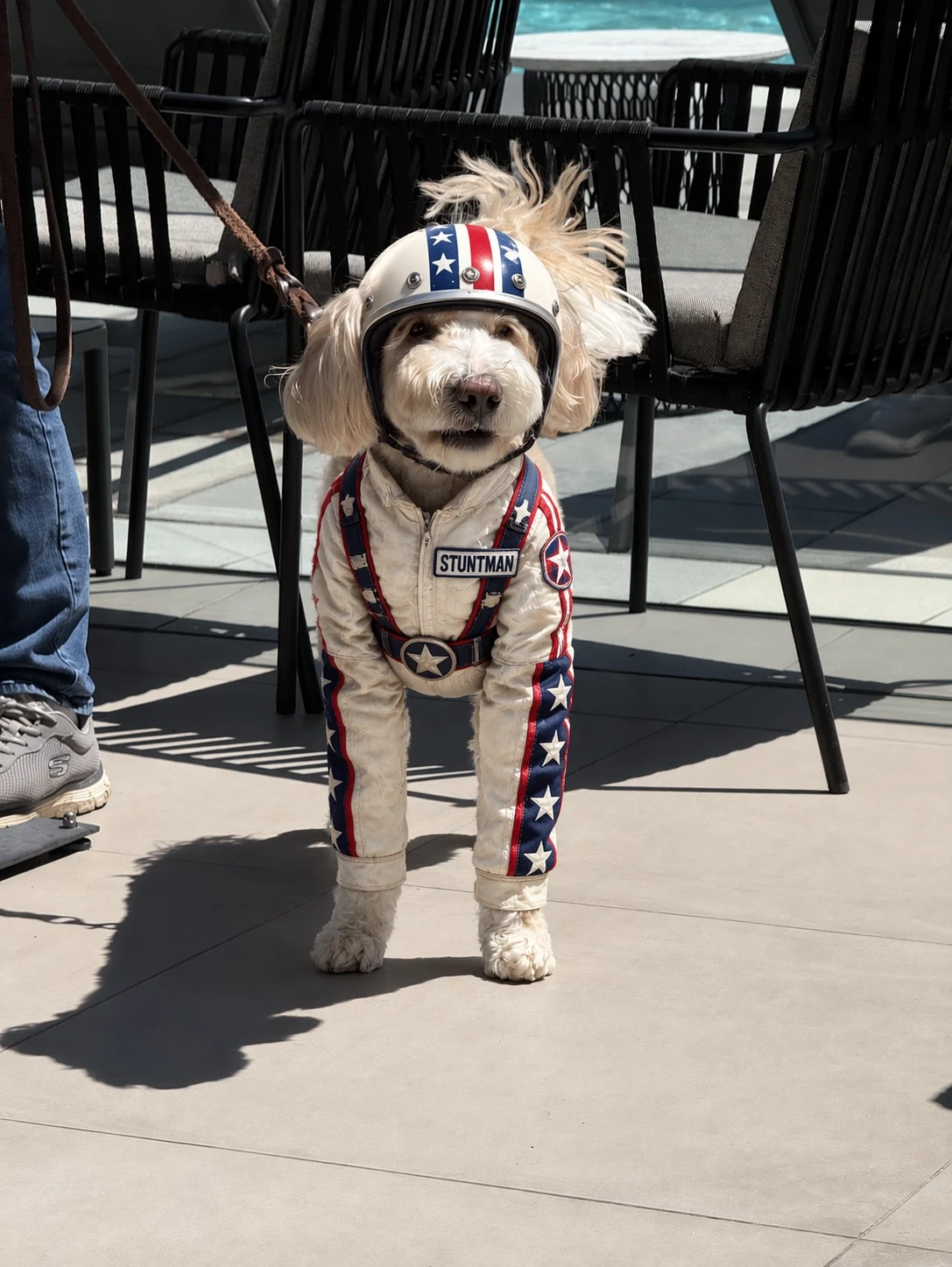
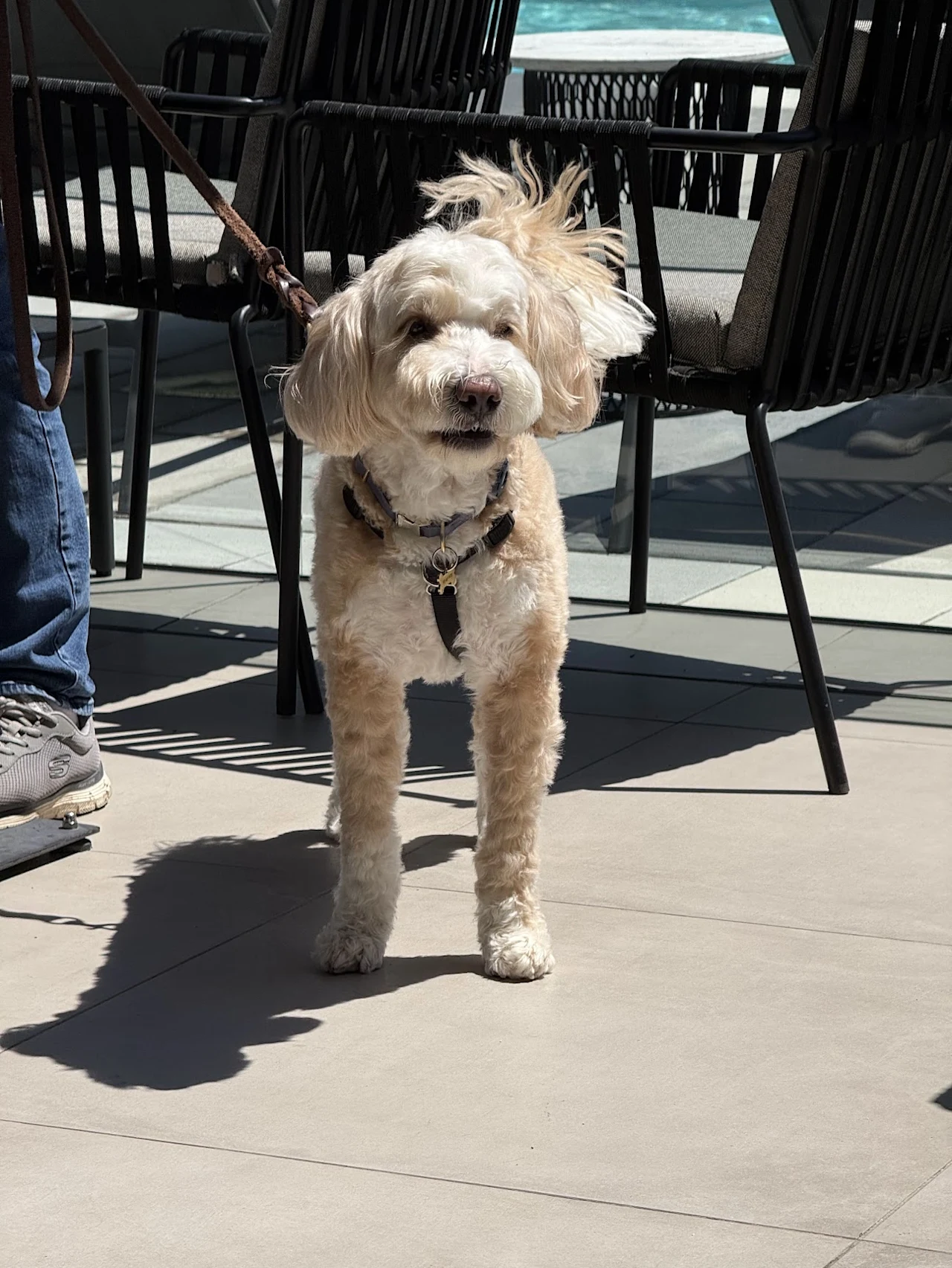
Dress a familiar pet for an imaginative scene while keeping its appearance and surroundings recognizable. The dog gains a white stunt suit and helmet with red and blue details, while the sunny patio and the dog’s stance stay connected to the reference. It is a useful way to explore themed portraits and playful creative variations.
Describe the costume, materials, colors, and small details.
Keep the pet’s features, stance, and setting as your reference.
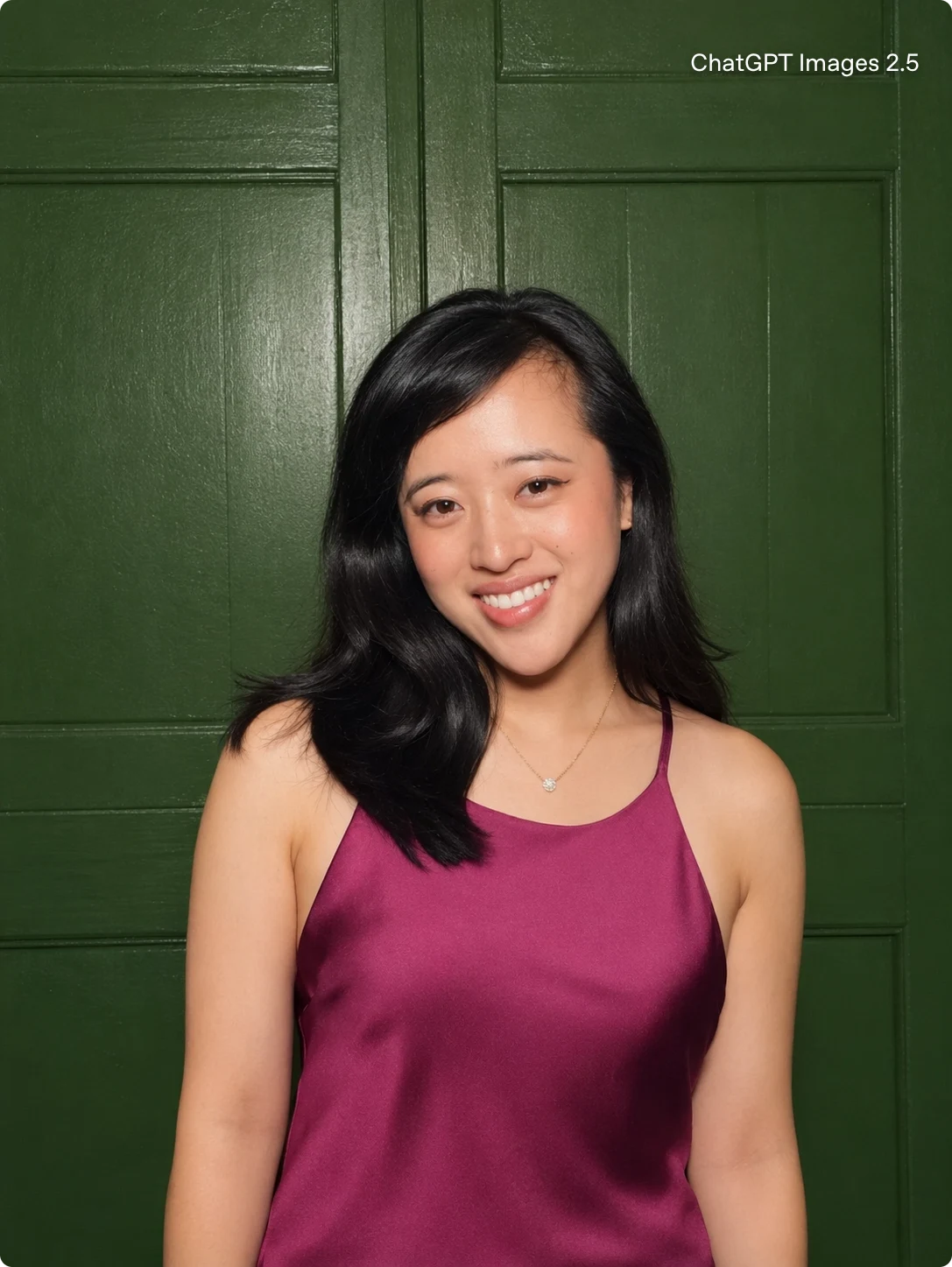
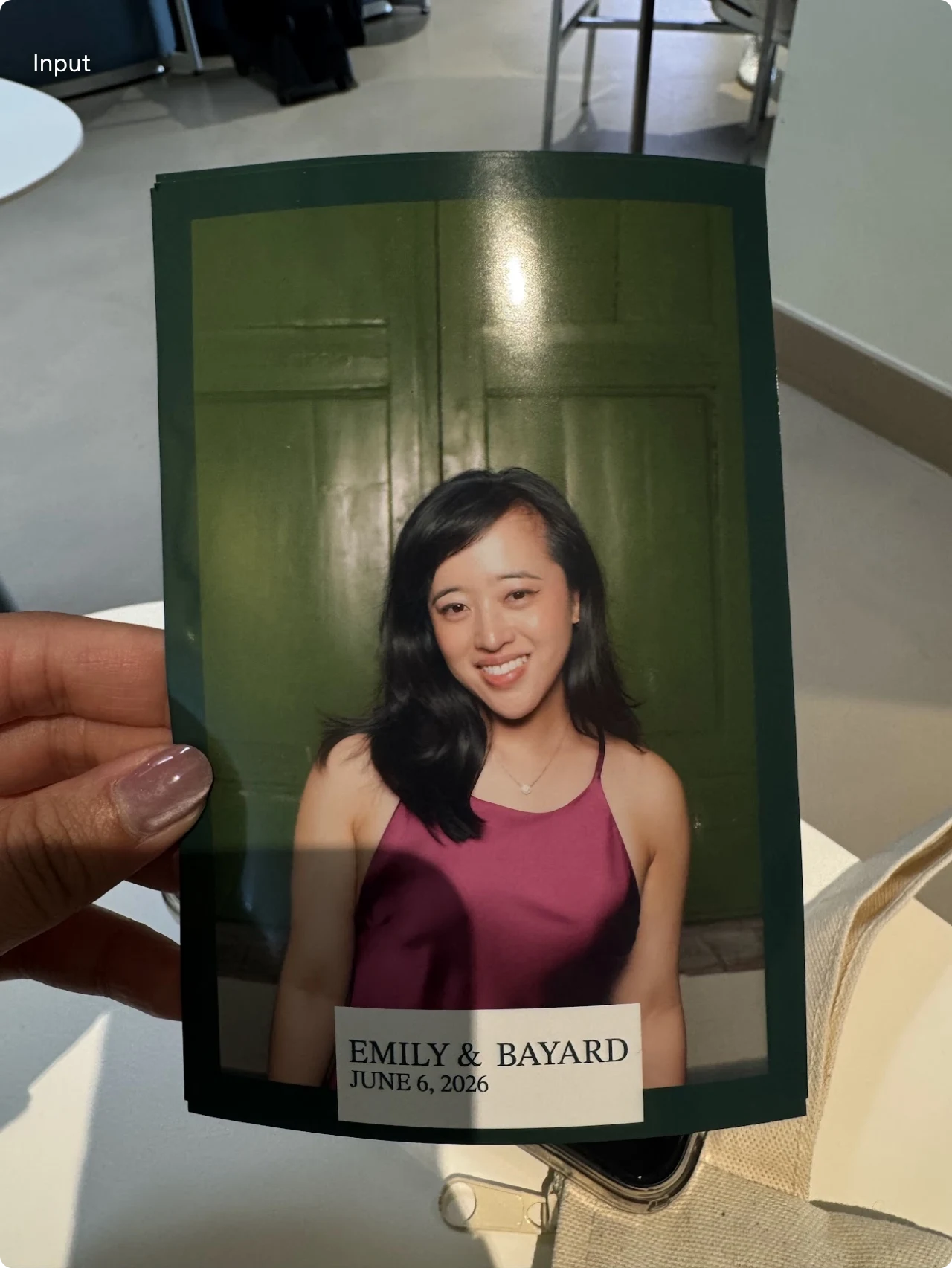
Use a photographed print as the starting point for a cleaner portrait. Here, the input is a hand-held photobooth photograph; the result brings the subject into a full image while retaining her expression, magenta top, necklace, and green backdrop. The reference supplies the identity and visual details for a more direct composition.
Use an existing photograph as the guide for identity and expression.
Refine framing while carrying through clothing and background details.
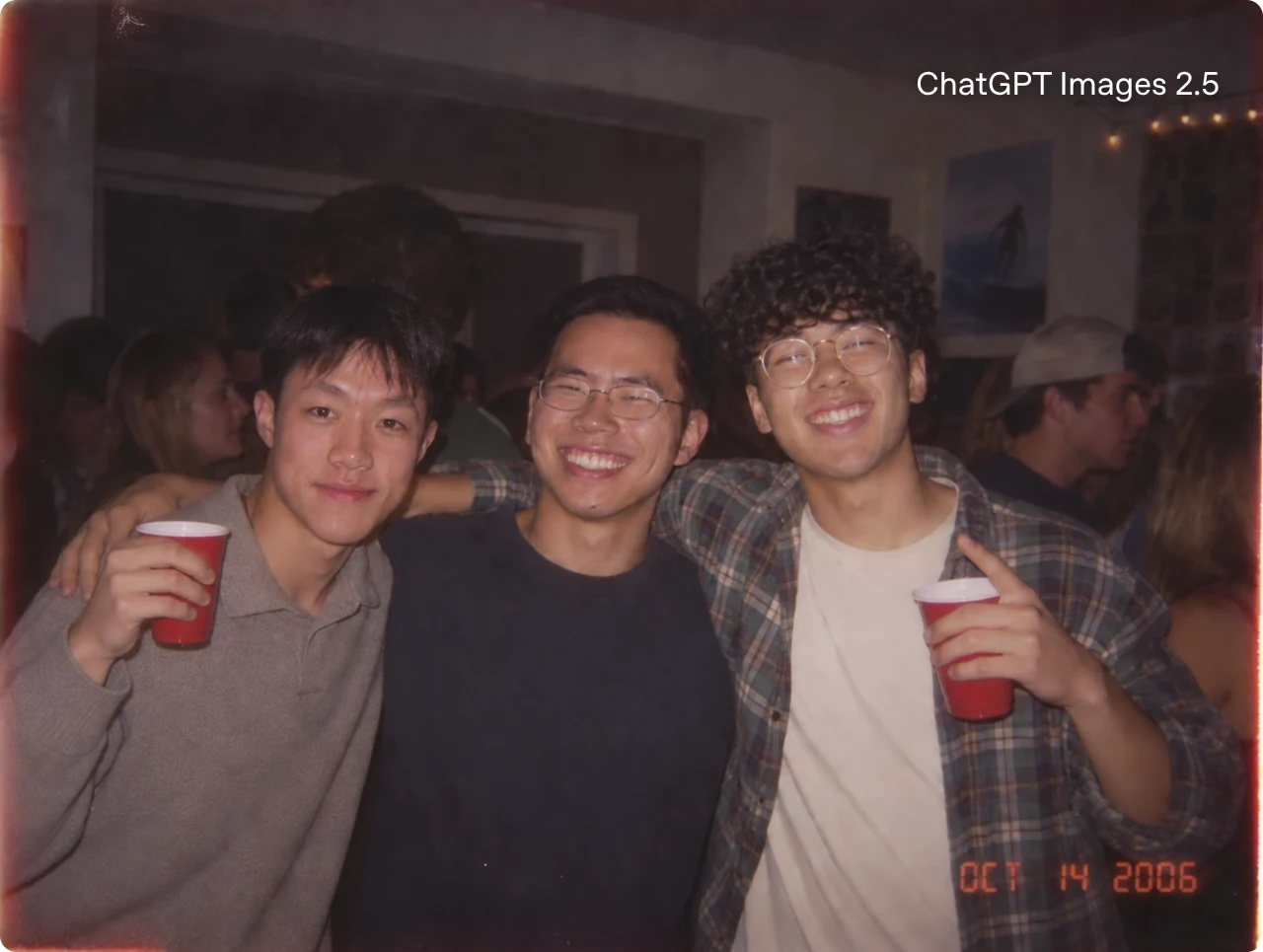
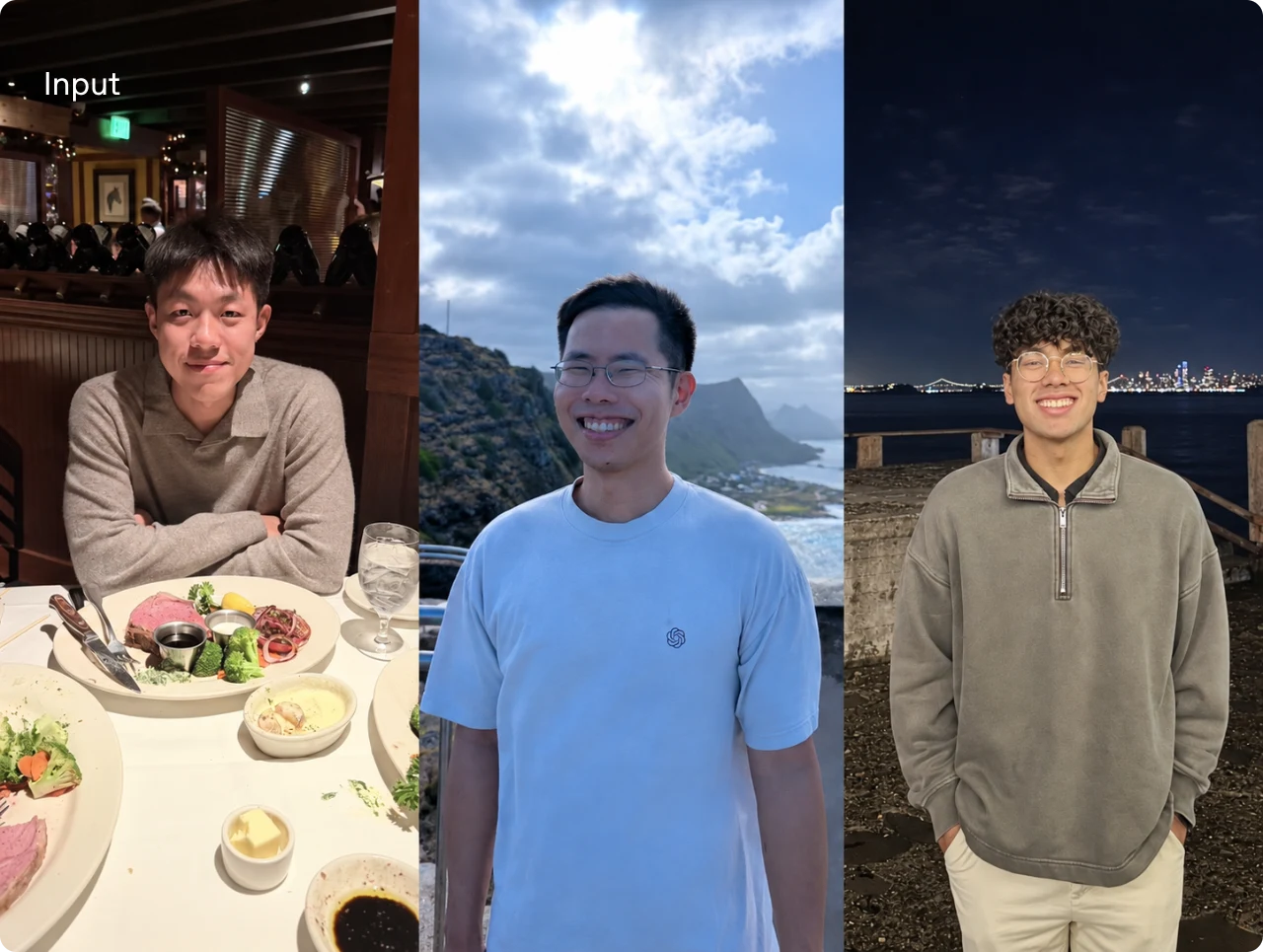
Combine people from separate photographs into a shared composition. Three individual references become one candid party photo, with the people posed together under consistent indoor lighting. This example shows how multiple image inputs can guide recognizable subjects, their placement, and the atmosphere of a new scene.
Provide a clear reference for each person you want to include.
Describe their arrangement, the setting, and the shared lighting.
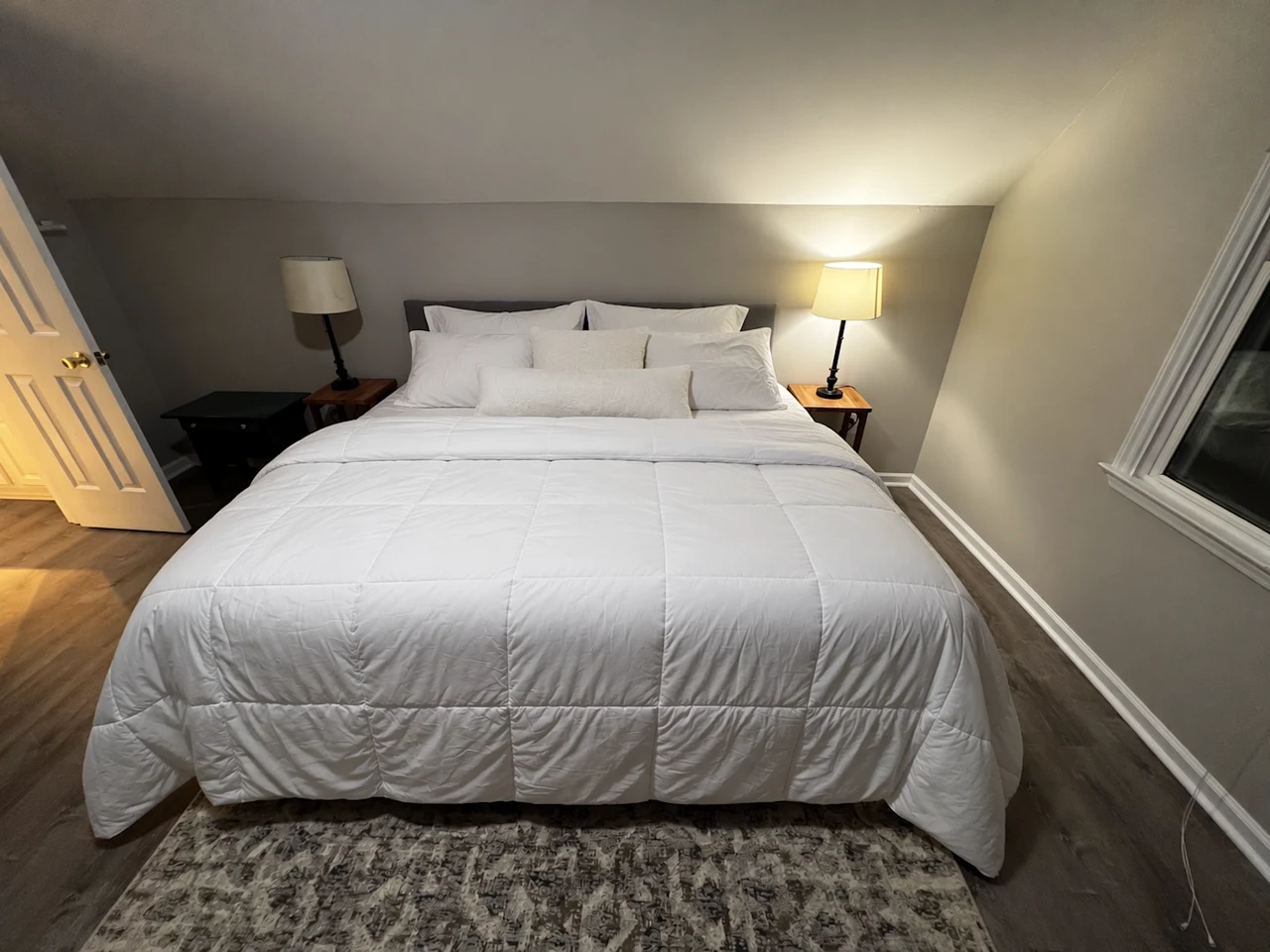
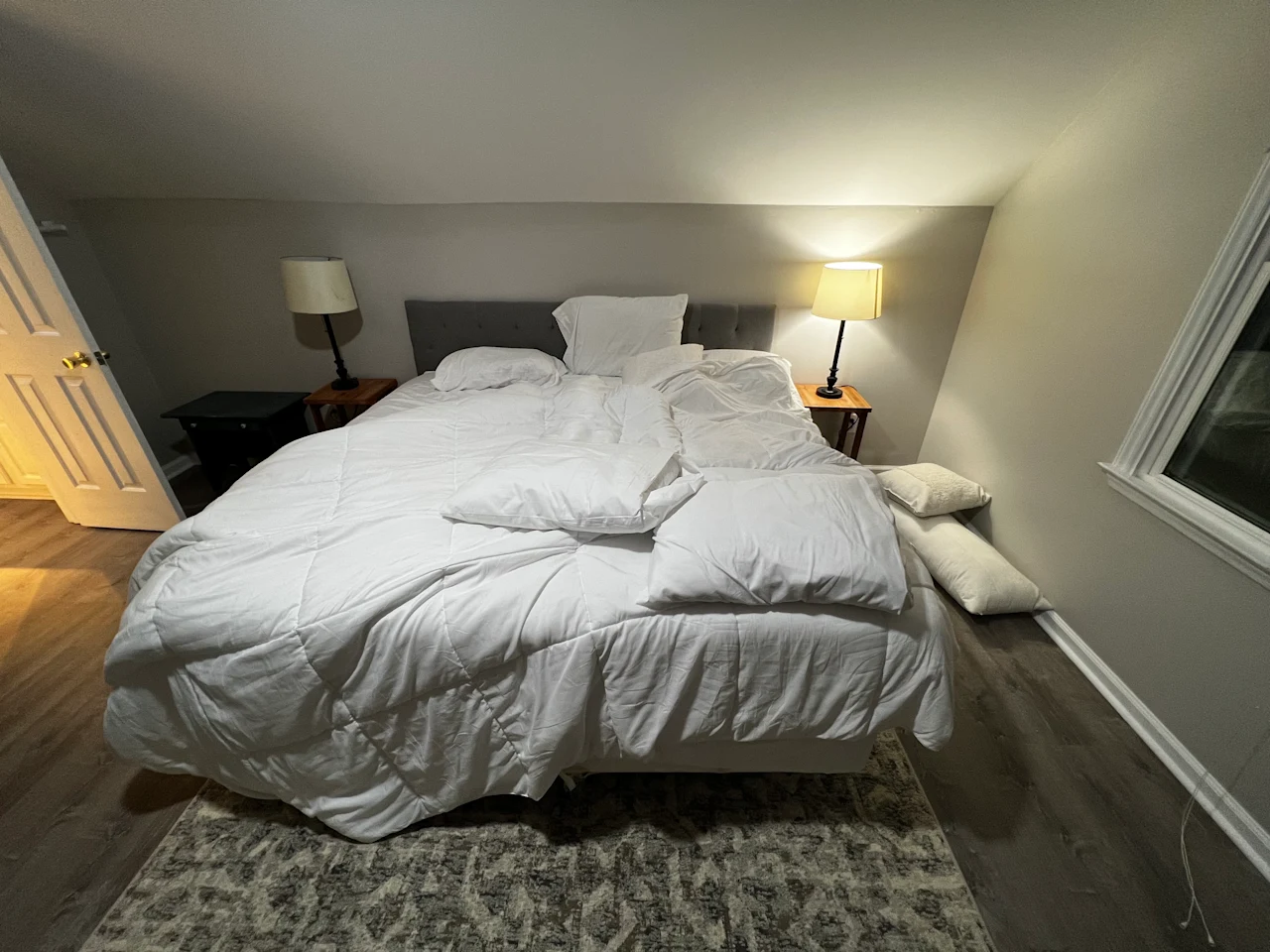
Make a targeted change to an interior while keeping the overall scene recognizable. The rumpled bedding becomes neatly arranged, while the room, furniture, camera angle, and lighting stay consistent. It is a clear example of refining a small part of an image for interior concepts, lifestyle visuals, or a more polished presentation.
Give the edit a narrow scope, such as tidying the bedding.
Specify the furniture, viewpoint, and lighting that should remain.
Create campaign visuals, product concepts, portraits, and structured graphics with a brief you can keep refining.
Advertising with a clear message
Build an ad around a real headline, a product or subject, and a clear visual hierarchy. Specify where the copy belongs and keep the palette consistent across a series. Flare is a practical starting point for exploring different campaign directions. Once a layout works, use a reference to adjust the headline, background, or styling while preserving the parts you want to keep. Review the final text at the size it will actually be seen.
Use a photograph as the starting point for a studio portrait, a cinematic treatment, or a playful change of era. Name the details that define the person, then describe the outfit, lighting, and setting you want to change. Sunburst is suited to careful refinements where recognizable features matter. Keep the source image available and compare each new version before using it as the reference for another edit.
Give products and interiors a consistent visual setting for catalogs, campaigns, and lifestyle images. Start from a reference when furniture, materials, colors, or a product’s shape need to carry through. Ask for a controlled change, such as tidier bedding, a softer shadow, or a different surface. The bedroom example shows how a small change can refresh a scene while keeping its overall layout recognizable.
Turn an explanation into a diagram, a presentation visual, or an early interface concept. Describe the reading order, the number of panels, and the exact labels before asking for a visual style. Sunburst can be useful when placement and editing precision are central to the brief. Generated interface concepts are visual references for the next design stage; check the information and recreate production layouts in your design tools.
Move quickly through ideas, or spend more time on the details that make a finished image. Explore more models and prompt examples with our AI Image Generator.
GPT Image 2.5 Flare
Keep up with your ideas
Flare is the everyday choice for fast, high-quality generation. OpenAI reports 50% lower latency than GPT Image 2, with improvements in image quality and editing.
Explore concepts and visual directions quickly
Create social posts, posters, and product variations
Sunburst is designed for creative work that needs extra precision. Give it more generation time for carefully directed edits, campaign visuals, and polished product imagery.
Make focused edits while preserving surrounding details
Keep subjects and visual identity consistent
Refine campaign and product images for final delivery
Keep the same image workflow and choose the improvements that matter to your next project.
What matters
GPT Image 2
GPT Image 2.5
Creative choice
A single model for generation and reference-based edits.
Flare for fast everyday creation; Sunburst for detailed finishing and editing.
Iteration speed
The comparison baseline in OpenAI’s Images 2.5 release.
OpenAI reports 50% lower generation latency for Flare.
Reference fidelity
Use input images to guide subjects and compositions.
Improved subject recognition, more natural lighting, and richer textures from references.
Targeted changes
Prompt-based image edits in the same studio.
More reliable editing instructions with better preservation of surrounding details.
Studio workflow
Generate, use references, download, and revisit History.
The same workflow, with Flare and Sunburst as separate model choices.
Speed comparisons refer to OpenAI’s Flare announcement. Actual time depends on the request; Sunburst prioritizes precision and takes longer. Read the official announcement
Frequently asked questions
What is GPT Image 2.5?
GPT Image 2.5 is OpenAI’s image generation and editing model family. Create images from a text prompt or use reference images to guide the result. Choose Flare for fast everyday creation or Sunburst for more precise creative work and detailed edits.
What has improved compared with GPT Image 2?
Images 2.5 improves reference fidelity, natural lighting, textures, and how closely images follow complex visual instructions. Targeted edits preserve surrounding details more reliably. OpenAI reports 50% lower generation latency for Flare than GPT Image 2; Sunburst focuses on extra precision with longer generation times.
Can GPT Image 2.5 generate text inside images?
Yes. Use it for posters, ads, packaging concepts, signs, and graphics that combine visuals with copy. Put the exact wording in quotation marks and describe its position and hierarchy. Keep important text concise, then check spelling, numbers, and placement in the finished image.
Can GPT Image 2.5 edit existing images?
Yes. Add a reference image and describe what you want to change, such as the background, lighting, clothing, colors, or part of the composition. Mention the details that should stay the same to give the edit a clear focus.
Does GPT Image 2.5 support repeated image editing?
Yes. Reuse the latest result as a reference and give the next edit a focused instruction. Images 2.5 is better at keeping earlier changes and surrounding details consistent through repeated edits. Previous versions remain available in the studio’s History so you can compare your progress.
Is GPT Image 2.5 suitable for product images?
Yes. Create product concepts, catalog compositions, packaging studies, and campaign visuals. Use a clear product reference when its shape, color, or branding needs to stay recognizable. Describe the surface, lighting, camera angle, and background, then review fine details such as labels and reflections.
Who is GPT Image 2.5 for?
It is useful for designers, marketers, content creators, e-commerce teams, and anyone developing a visual idea. Use Flare to explore concepts and variations quickly, or choose Sunburst when precise edits and polished final images matter most.
Your next image starts with an idea.
Choose your model, add a prompt, and make something worth keeping.